
How To Allow Pop-Ups For WisFIRS: Edge
To use WisFIRS, pop-ups must be allowed in your browser. If you try to open a pop-up and it does not open, a blocked symbol will appear in the upper right corner of the browser.
There are two ways to allow pop-ups for Microsoft Edge.
Responding To The Alert
When you try to open a feature that launches a pop-up, Edge may display an alert in the top right corner of the browser.
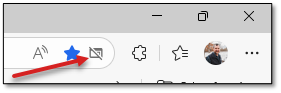
Click on the alert. The alert notes that the pop-up was blocked. Select "Always allow..." and "Done."
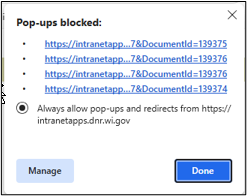
Close all Edge browser windows and reopen WisFIRS in a new Edge window.
Customizing Microsoft Edge
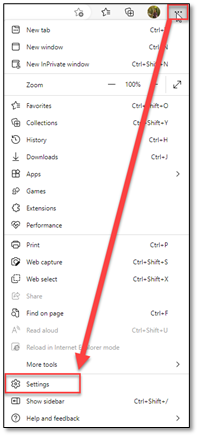
Open the Microsoft Edge browser. Go to "Settings and more" by selecting the ellipsis (three horizontal dots) in the top right of the browser. Then choose "Settings."
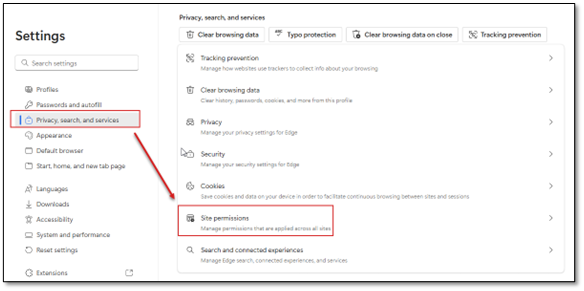
Go to “Privacy, search, and services.” Select “Site Permissions.”
Go to "All Permissions," then "Pop-ups and redirects." In the "Customized behaviors" section, go to "Add site."
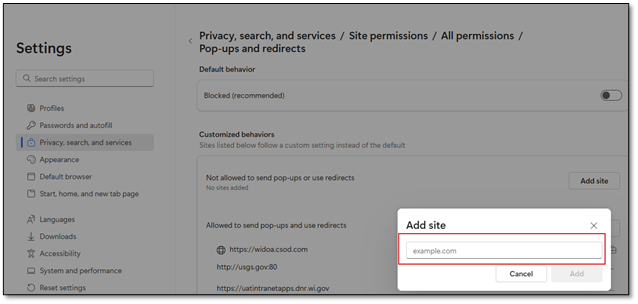
Enter the following addresses into the text box:
If you are a potential WisFIRS tester, also add:
Close all Edge browser windows and reopen WisFIRS in a new Edge window.
Help
If you are experiencing problems with WisFIRS, you can report them. In the upper right-hand corner of the WisFIRS application, click on "Report a Defect."

You can also contact DNRForestryTechSupport@wisconsin.gov for assistance.